Working with compositions
This chapter will show you how to create a composition, how to create a first version, how to add versions and how to manage compositions settings.
Creating a first composition
Go to the Compositions tab in the sidebar (see Compositions). You will see an empty list of compositions.
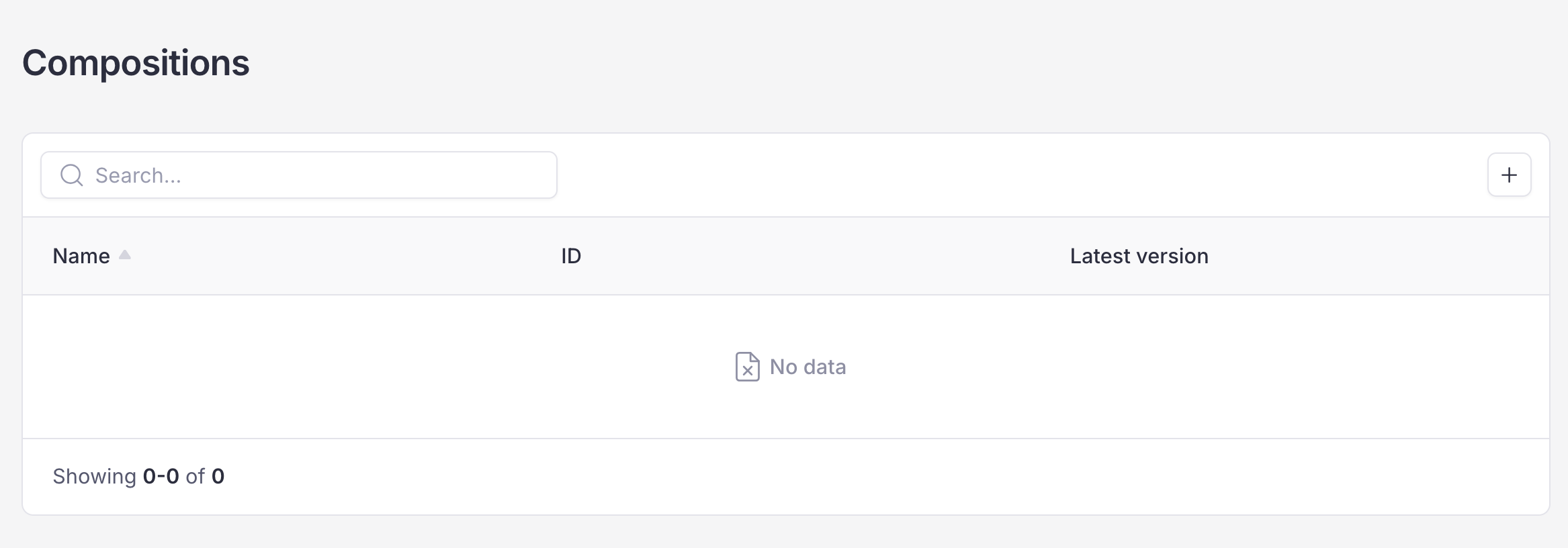
Click on the "+" button on the top right corner to create your first composition. You will be asked to type a name for your composition. Let us try with “Test Composition”.
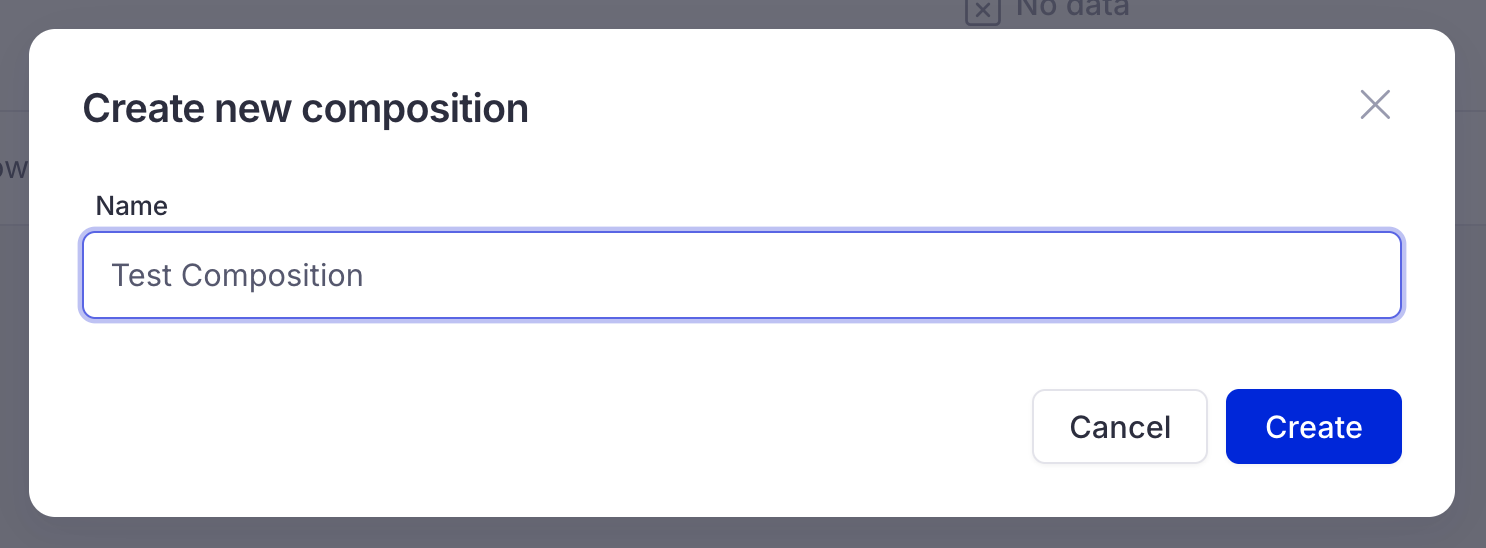
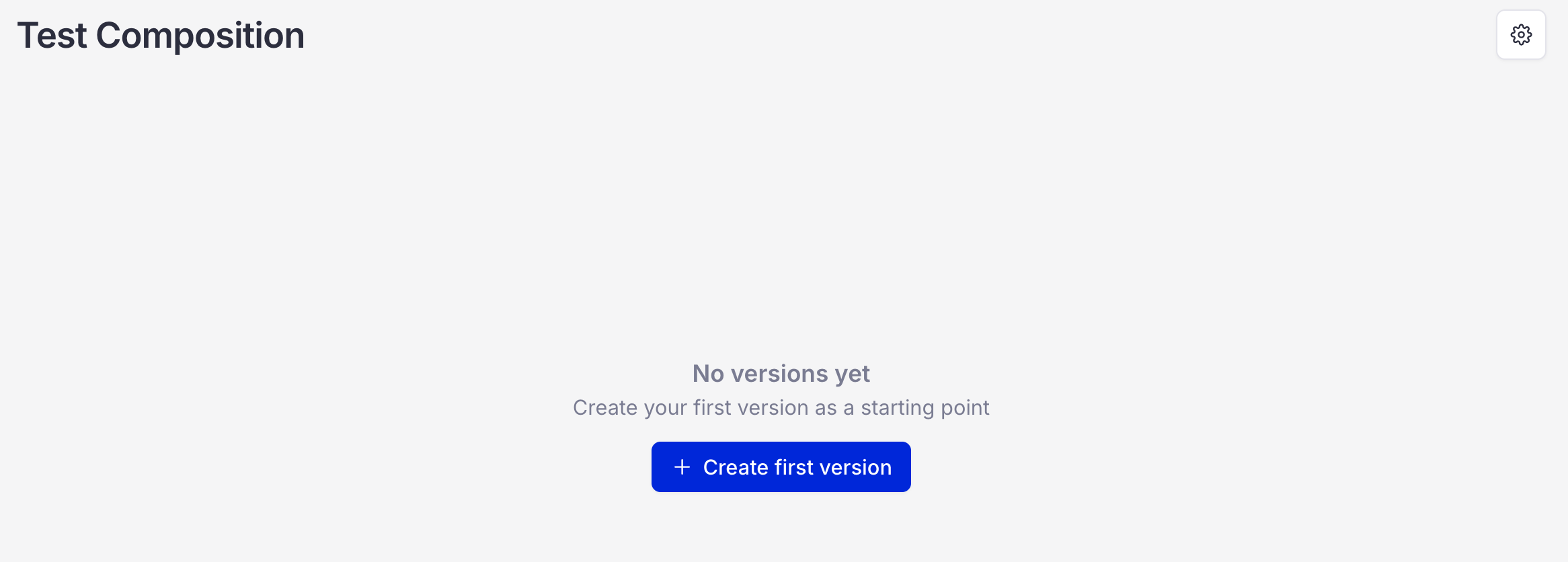
After that, press Create button and you will be automatically redirected to your newly-created composition.
Versioning
As you can see on the previous screenshot, there is nothing, but a button Create first version. So let’s create a first version of our composition. Let us use the “Hello world” application as for now.
Creating first version
Press Create first version and let’s create our first version. Provide a number for your version
Important
You must give a semantic(one that is following a common rules) versioning. X.Y.Z, where X - stands for Major, Y - Minor and Z - Patch
Next step is to provide a description for your version. Note that this step is optional, but we recommend to fill this field up. After that you need to add your application(which is a Dockerfile you downloaded earlier). Drag and drop, or click Choose file and choose a file from your computer
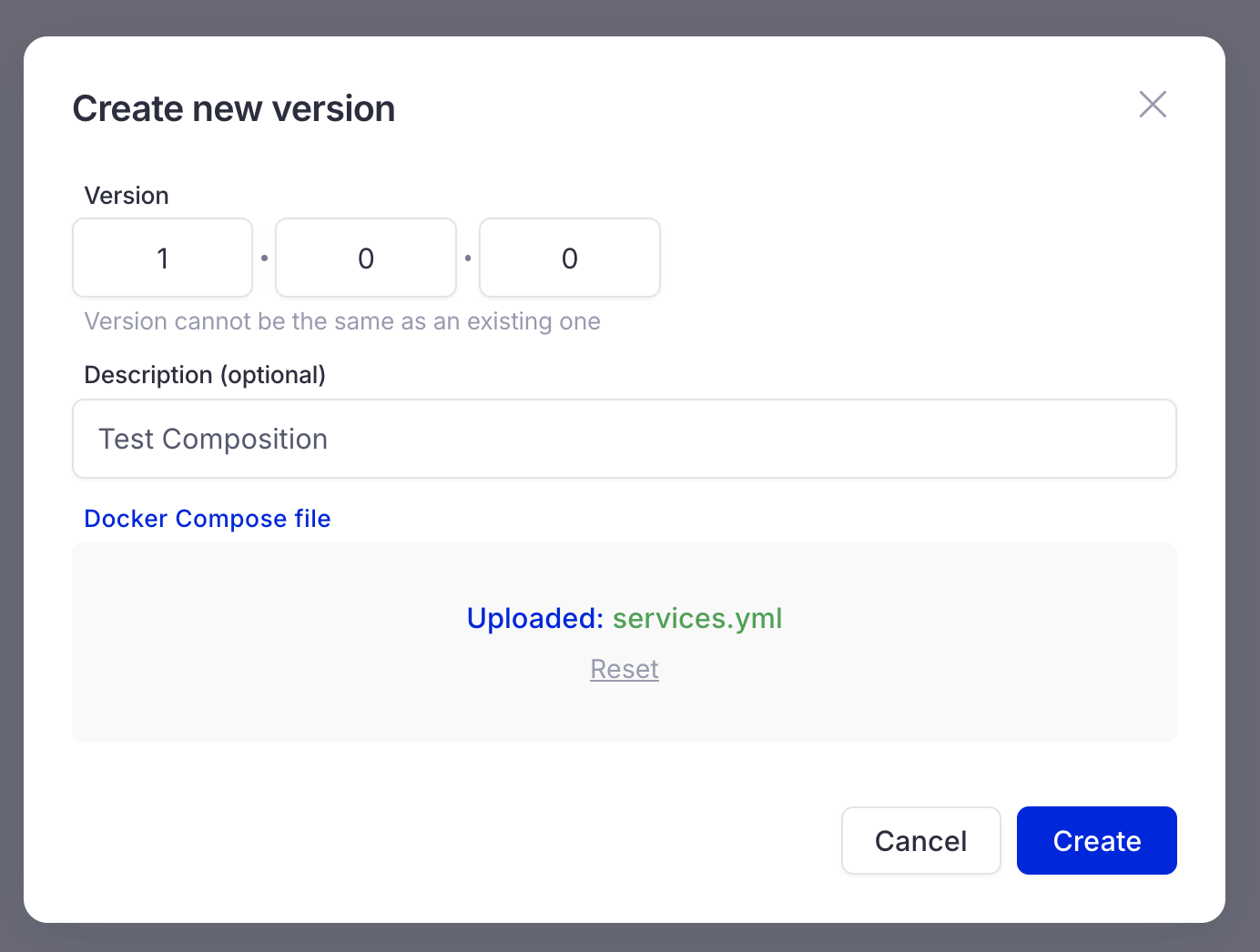
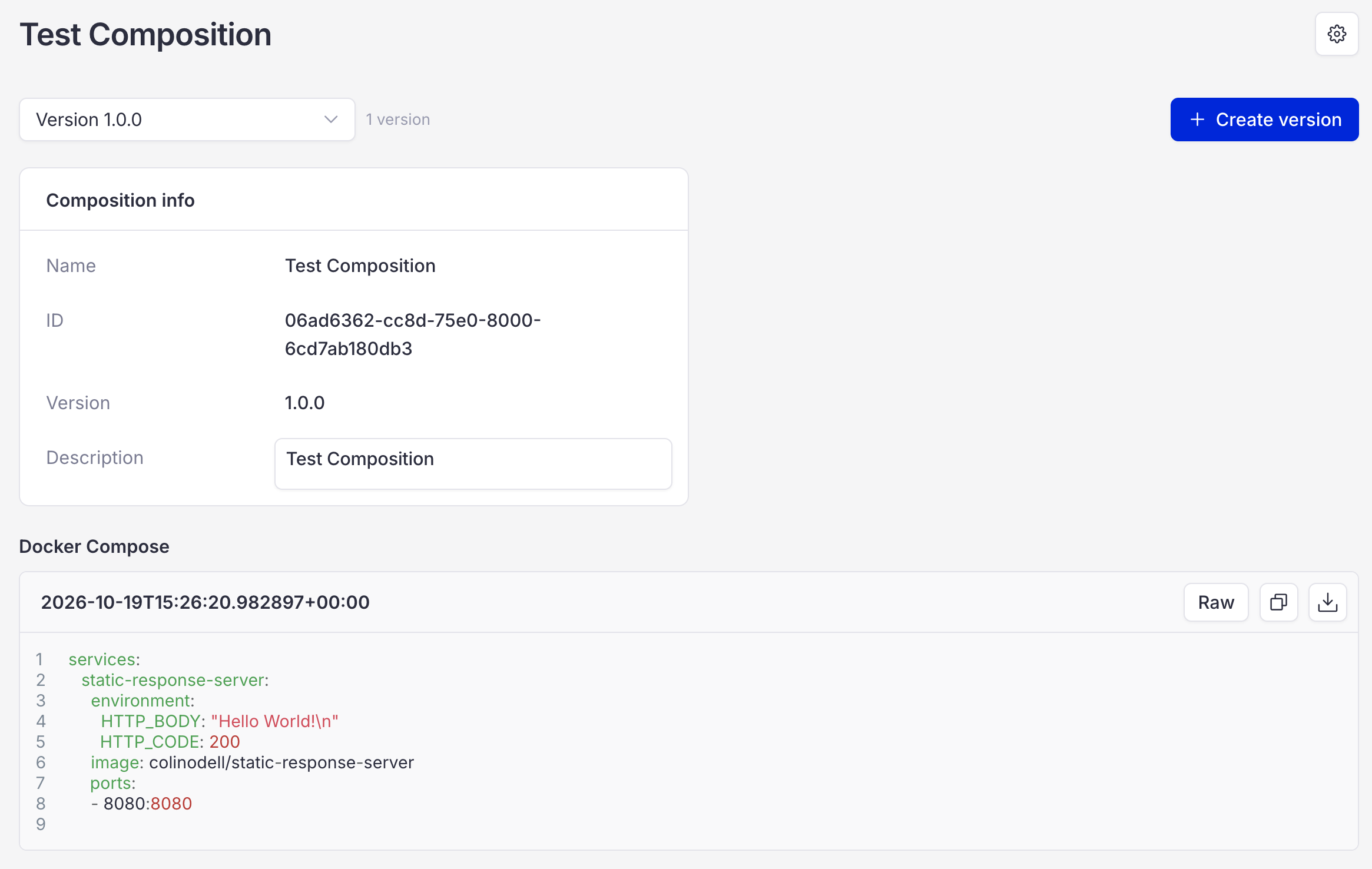
Press the Create button, and you are done! You have just created your first version for the composition. Here how it looks like:
Adding a version
In order to add a new version to the composition you will need a new version of application. You can download it here: Hello World App 1.0.1
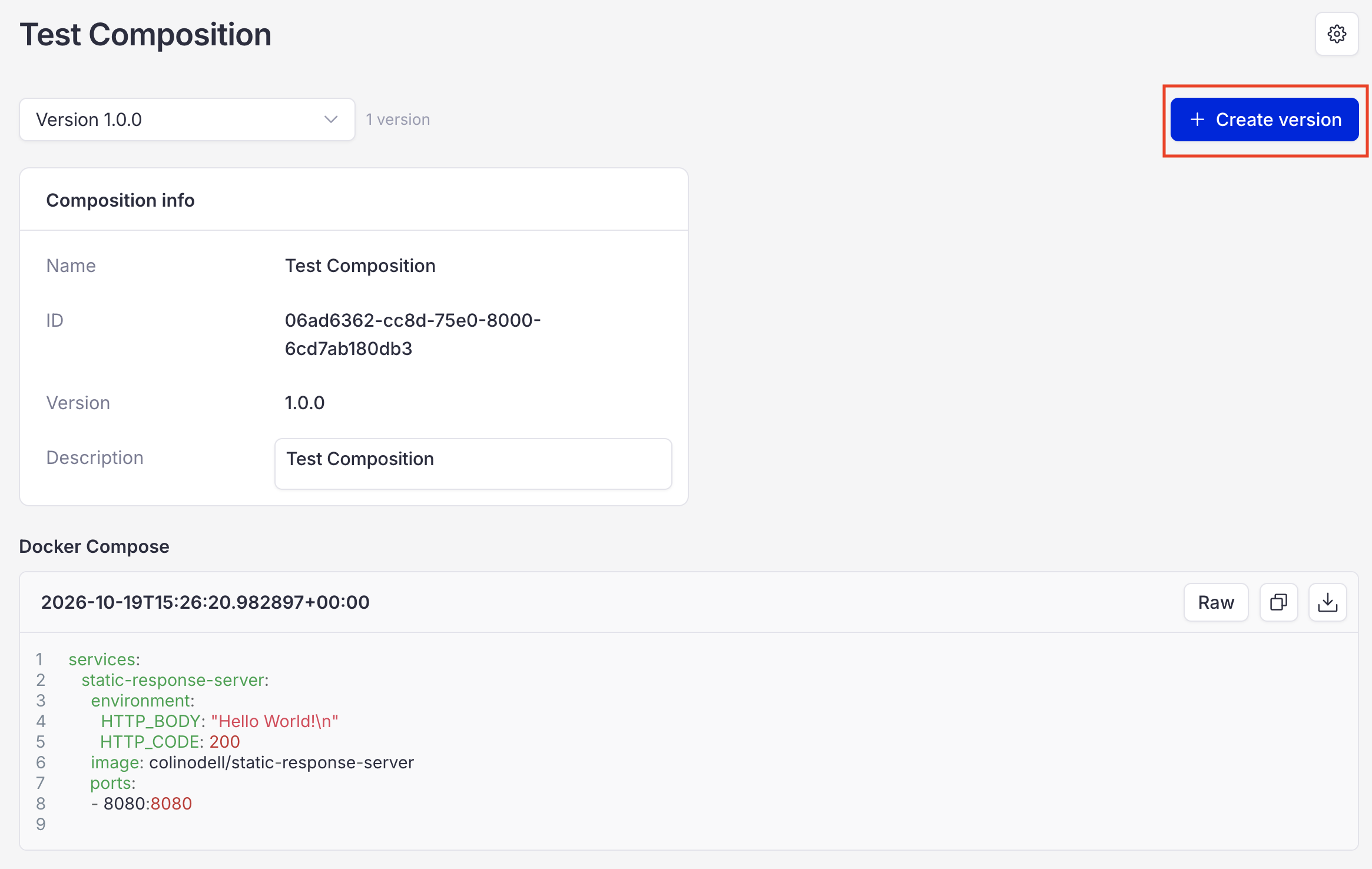
Next step is to create a version. Click the Create version button at the top right corner.
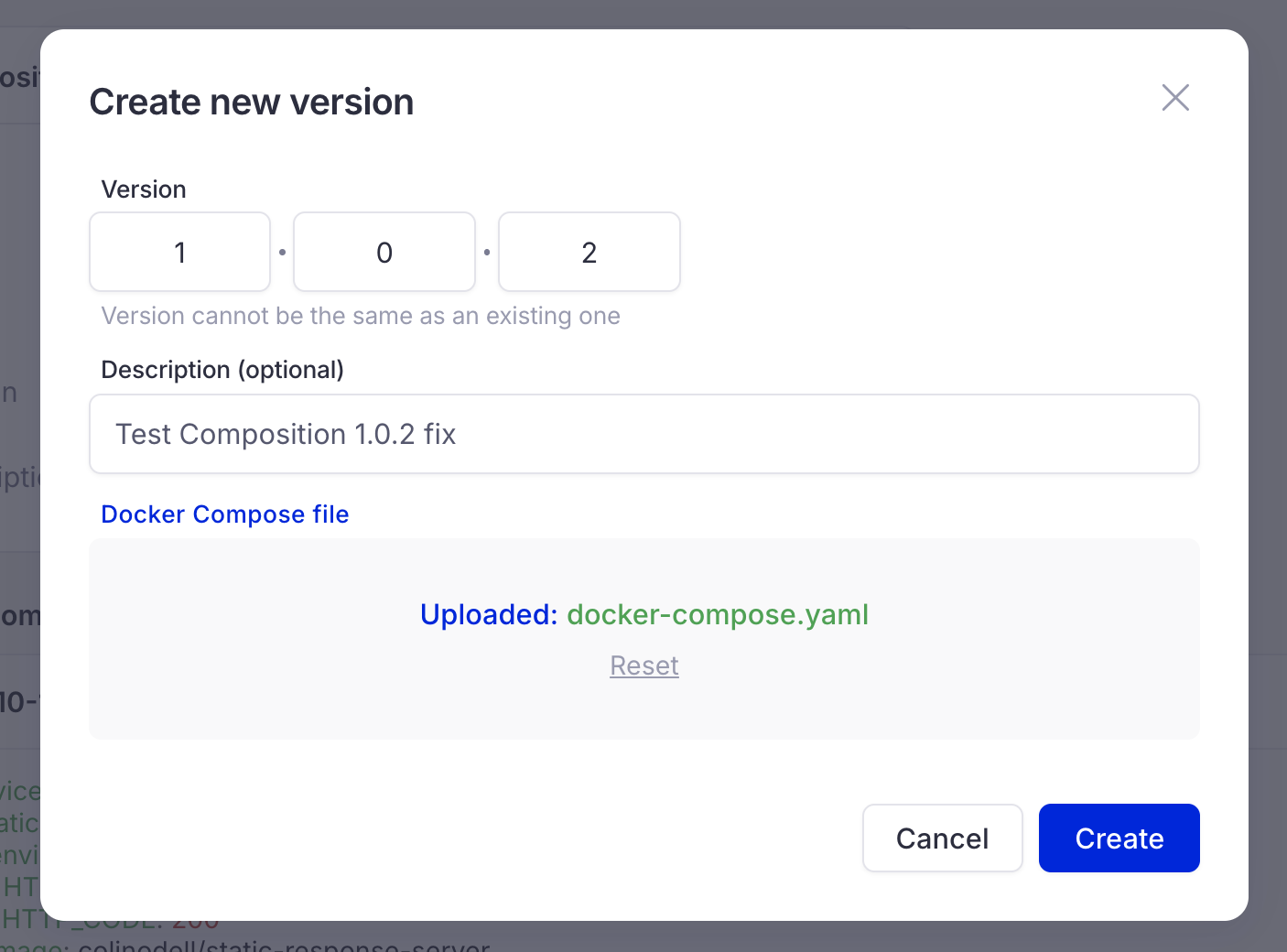
After that you are going to see a familiar pop-up. Follow the same process as you did while creating the first version.
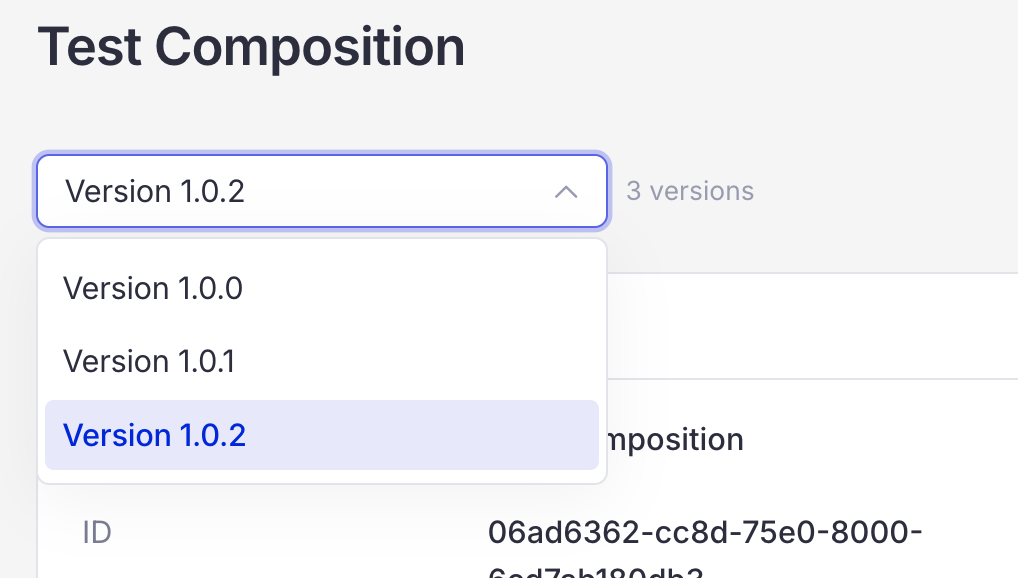
After that, click Create button and a new version should appear in dropdown version list
Composition Settings
You can manage your composition settings very easily.
You can rename your composition by typing a new composition name and pressing Save button
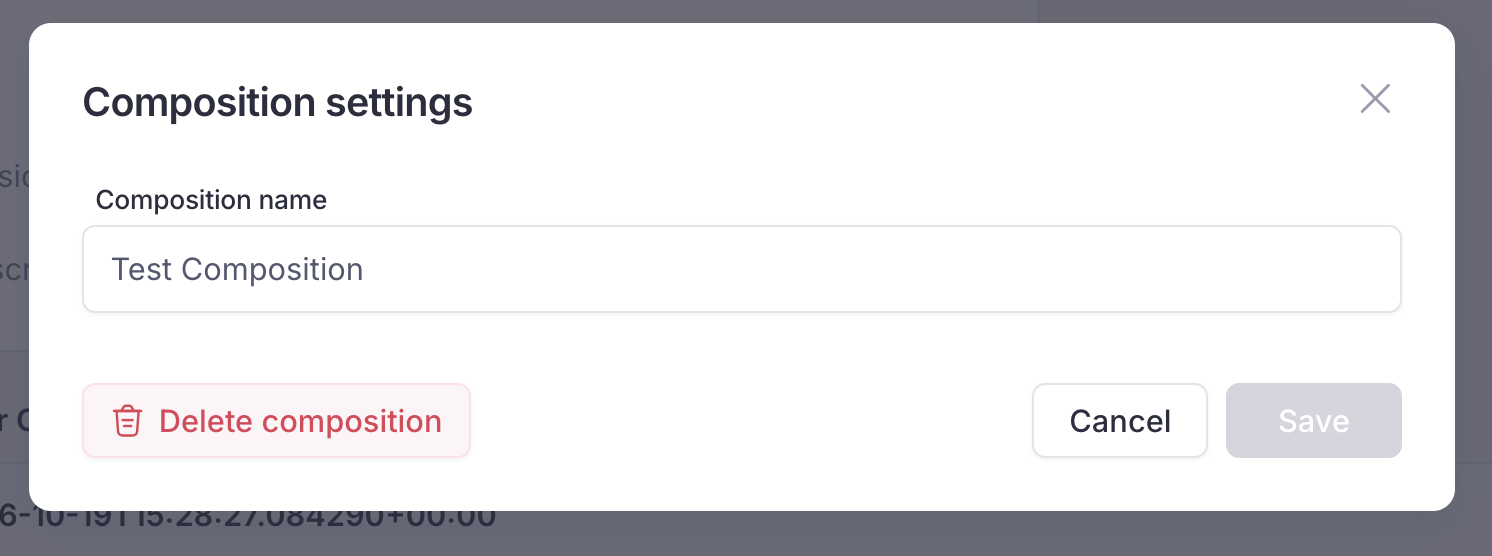
Also you can delete your compositions. But be very careful, deleting composition cannot be undone.